Sunday, February 03, 2013

Repair Windows XP Without Bootable CD

 REPAIR Windows XP Without Bootable CD
Many Times the registry entries or files of our system got corrupted because of viruses or other reasons, in this case for repairing windows XP we format our system or repair windows xp by some other ways like by using Bootable cd method. But through this method we can repair our windows xp without using Bootable cd or Formatting System. This Method is Called Web Folders XP Repairing System.
Follow me to Repair Windows Xp:
  • Click On Start and Go to Run.
  • In Run Type webfldrs.msi
  • New Window Will Open In Your Screen Now Click On Select Reinstall Mode.
  • Again New Window Will Open In Your Screen Just Tick Marks On all the Options and Click Ok.
  • It Will Take Some Time in Repairing Your Windows XP and When the Process will be Completed it will ask to Restart your System then Just Restart your System.
Repair Windows XP Without Bootable CD
  • That's It, By Using This Method Your Windows XP will be repaired without using bootable cd or Formatting.

Saturday, February 02, 2013

Fake Call Your Friends Using Any Mobile Number

 Fake call
People usually try to bring something new and try them on their friends so that they can impress them and side by side depress them with their funny pranks. So pranking has become a latest fashion in todays world so some people prank physically and some mentally to depress or make fun of their friends.
Today we are taking it to a new level by revealing you another amazing online fake calling service called “CrazyCall”. This service is simply unbelievable and works quit perfect, so there is no point of saying that this service is useless as I have tried it and it works perfect. Some of you might have used it but some of you don’t know what is Crazy Call, so okay for all those who do not know what is Crazy Call it’s a simple online service which connects your call through their server to anyone you wanna talk in the world.Crazy Call is not a free service as it charges with their international call prices but well if someone want to prank with you than some price cost is nothing to matter. So you should check steps below to see how Crazy Call works. 
Follow below steps .
  • Visit Crazy Call Website.
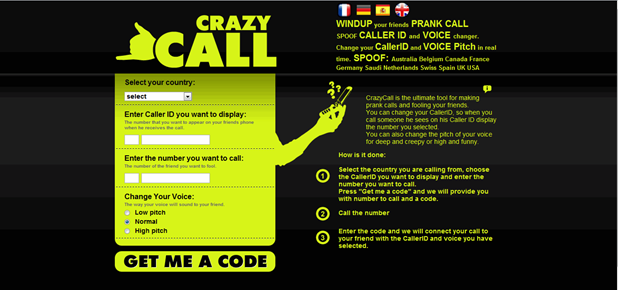
  • Now you will be on their website which looks something like below .:
  • Now you can see that theirs a Green Box above in the image asking you too choose country and than insert numbers you wanna display and make your call too, insert everything like below I have done in the image.
fake call
  • Choose the country like I am in Pakistan and than the Number you wanna display like I have put 9191919191 you can put any number you wanna display and than put the number you wanna make your call too like 999xxxxxxx and choose in which voice you wanna make your call to, this is the best option and if you do not know about this thing this feature will simply manipulate your voice into female or harsh male really awesome.
  • Now click on GET ME A CODE and you will than navigate to their another page which will give you two numbers to call and a code which you have to enter when your call is connected.
  • So now you can call any one of those numbers above, two numbers are given just in case you are not able to call with one number you can connect your call with another one and than when your call is connected the computer asks you to enter the code you see above just enter that and boom your call will be connected with your friend displaying him the fake number you entered.
  • So now enjoy this fake call and make your friends cry, tell them it’s a call from their college and they have been suspended for not attending lectures or anything you know better than me how to prank them make sure to read the below Warning.
Warning The call costs you with International Prices, it works good but it costs like Rs. 15 for 1 Minute call, and from my experience I tried it out and the service was good there is no advertisement or anything but it charged me like Rs. 30 for 2 Minute so beware of it only use this service if you really want some serious prank else do not use this service.

Windows 7 Tips, Tricks and Secrets.

 windows 7 logo
Windows 7 seven users are increasing day by day and it gives you some much of fun exploring the tips, tricks and hidden secrets in windows 7. In this post we had given some of our user suggested tips, tricks and secrets, lets fly around them!!!
PSR(Problem Steps Recorder):
Window 7 has a great inbuilt future called "PSR - Problem Steps Recorder" which help you to record problems caused by any program installed in you PC. As a PC guru you are followed by your friends and relatives or by others to make you to solve the irritating small PC software problems ;-( I know you are very frustrated by this because they even don't know how to describe their actual problem.
But Microsoft knew your pain, So they had came up with a good solution(PSR) by which you can ask your friend/relative/others to run this and send the generated report, So that you can solve their problem with ease.Now lets see how to work with it,  
Just follow this simple steps.
  • Click on "Start" and type "PSR" and press enter.Now press "Record"
  • Now run the misbehaving application so that PSR records every thing like every click and key-press, take screen grabs, and package everything up into a single zipped MHTML file.That's it you are all set to go and solve the problem.
Start Up Repair:
One time or other every body faces this start up problem for a reason or for no-reason, So its good to create a system repair disc straight away in case you run into problems booting the OS later on. Just follow this simple steps.
  • Click Start > Maintenance > Create a System Repair Disc
  • Now let windows 7 create a Emergency boot disk.If you get to worst case this disk will help you to boot.
Find out Hidden wallpapers and themes:
We all knew that while windows 7 is been installed it will ask for your country, Time Zone etc.., Now based on your responses windows 7 will automatically selects which wallpapers to install by default.
Suppose you had selected your country as India, So that windows seven will install some wallpapers which are related to India.
To unlock all the wallpapers just follow this simple steps.
  • Click on Start and type "C:\Windows\Globalization\MCT" in the search box.
  • Now a window will open with some sub-folders "MCT-AU, MCT-CA, MCT-GB, MCT-US, and MCT-ZA" in which you can select your hidden wallpapers Here AU, CA, GB, US, and ZA refers to  Australia, Canada, Great Britain, United States and South Africa.
Import file over a network to Windows Live MovieMaker:
In windows 7 by default Windows Live MovieMaker will not give you access to import files over a network, but a simple Registry tweak will make this happen. Just follow this steps.
  • Run REGEDIT
  • Now navigate to HKEY_CURRENT_USER\Software\Microsoft\Windows Live\Movie Maker,
  • Now add a DWORD value called AllowNetworkFiles and set it to 1 to add network support.
  • That's it your done.
Custom Power Switch:
By default you see the "ShutDown" button on start button. But you are the man who reboots your pc several times a day then you can change "ShutDown" to "ReStart" in a few click by fallowing this simple steps.
  • Right - Click on Start button.
  • Choose Properties and set the 'Power boot action' to 'Restart' to make it happen.
  • That's it your done!!
Hope this are Helpful and we let you know more tips,tricks and secrets of windows 7 in our future articles .

Speed Up Your YouTube Videos Enjoy with no Buffering

http://jablickar.cz/wp-content/uploads/2010/07/iphone_youtube1.jpg
Buffering is simply referred to loading when you play some video on YouTube or other video website than it depends on your Internet Connection how fast in will play, if you have a low speed connection than it might buffer a lot and you might get fed up. You have many options with which you can make your video to play faster like decreasing the resolution @ which the video is playing or changing your internet service provider but wait do we have any other good solution to this thing well Yup ! we have one best solution to solve this problem.Speedbit the same company which delivers best Download Manager DAP ( Download Accelerator Plus ) has another good and cool product called Speedbit Video Accelerator,Speedbit Video Accelerator simply recovers your lost internet speed and boosts your video speed for no buffer and smoother play.
The process to get this into work is really simple as it is just a software so install it on your Windows or Mac machine and than it automatically accelerates your YouTube or any other video’s. You can see the Accelerating Message on the right hand side corner like in the image above.Now there’s one problem with this free software that it does not Accelerate HD Videos so you have to purchase their premium version to accelerate those videos. Well but if you are not in the plan to invest some money in this software than free version is best for you. SO for the proof I just started watching some online movies and I saw incredible change in buffer it didn’t buffer for even one time and I was able to watch movies smoothly and constantly.
Now people who are interested in this software can Download it from Video Accelerator Website, they have both PC and MAC Versions so check out which one you wanna download according to your system.

Make your Google search efficient

Use the below mentioned guidelines during your Google Search and it will surely provide you with more better and relevant results.
  • Either/or Google normally searches for pages that contain all the words you type in the search box,but if you want pages that have one term or another (or both), use the OR operator — or use the symbol (pipe symbol) to save you a keystroke. For eg. [dumb | little | man]
  • Quotes If you want to search for an exact phrase, use quotes. For e.g. ["marvel tech spot"] will only find that exact phrase.
  • Not If you don't want a term or phrase, use the - (minus) symbol as prefix. For eg. [-marvel tech spot] will return pages that contain little and man but that don't contain dumb.
  • Similar terms Use the ~ symbol to return similar terms. For e.g. [~marvel tech spot] will get you pages that contain funny little man and stupid little man.
  • Wildcard The * symbol is a wildcard. This is useful if you're trying to find the lyrics to a song, but cant remember the exact lyrics. [cant * why not me lyrics] will return the Beatles song you're looking for.
  • Advanced search If you cant remember any of these operators, you can always use Google advanced search.
  • Definitions Use the 'define:' operator to get a quick definition. For e.g. [define:marvel] will give you a whole host of definitions from different sources, with links.
  • Calculator One of the handiest uses of Google, type in a quick calculation in the search box and get an answer. Its faster than calling up your computers calculator in most cases. Use the +, -, *, / symbols and parentheses to do a simple equation.
  • Num-range This little-known feature searches for a range of numbers. For e.g. [best books 2002..2007] will return lists of best books for each of the years from 2002 to 2007 (note the two periods between the two numbers).
  • Site-specific Use the 'site:' operator to search only within a certain website.For e.g. [site:marveltechspot.­com Android] will search for the term Android only within that site.

Awesome List of Google Tricks

 http://www.diamantefm.com.ec/upload/fotos/google_music_1.jpg
As Google is the best search engine its also one of the most hotspot for occasional tricks and tweaks which we are going to discuss right below. So these list of Google tricks will attract your attention and entertain you and your friends. You must check all tricks listed below maybe you know many of them as we have posted some in our earlier posts but some are totally new to us.
20 Awesome Google Tricks :
  • Type “let it snow” and click on I’m Feeling Lucky. (awesome snow effect)
  • Type “google gravity” and click on I’m Feeling Lucky. (things start falling down)
  • Type “elggog” and click on I’m Feeling Lucky. (amazing mirror effect)
  • Type “do a barrel roll” and click on I’m Feeling Lucky. (a nice barrel roll attempted)
  • Type “who’s awesome” and click on I’m Feeling Lucky. (check it out yourself)
  • Type “tilt” and click on I’m Feeling Lucky. (webpage in 3D)
  • Type “who is the cutest” and click on I’m Feeling Lucky. (cute reviewed)
  • Type “google loco” and click on I’m Feeling Lucky. (someone starts moving)
  • Type “lol limewire” and click on I’m Feeling Lucky. (awesome picture)
  • Type “epic google” and click on I’m Feeling Lucky. (check it out yourself)
  • Type “rainbow google” and click on I’m Feeling Lucky. (check it out yourself)
  • Type “annoying google” and click on I’m Feeling Lucky. (check it out yourself)
  • Type “google pacman” and click on I’m Feeling Lucky. (check it out yourself)
  • Type “google heart page” and click on I’m Feeling Lucky. (check it out yourself)
  • Type “google magic” and click on I’m Feeling Lucky. (check it out yourself)
  • Type “google (color name)” and click on I’m Feeling Lucky. (check it out yourself)
  • Type “epic box” and click on I’m Feeling Lucky. (check it out yourself)
  • Type “sexy snape” and click on I’m Feeling Lucky. (check it out yourself)
  • Type “google sphere” and click on I’m Feeling Lucky. (check it out yourself)
  • Type “weenie google” and click on I’m Feeling Lucky. (check it out yourself)
So now pump these words into Google search and than click on I’m Feeling Lucky button and get amazed with awesome Google Tricks. Now you might get some problems as Google has updated their search page and now Instant search is on so make sure you turn that off by going to the Settings Gear icon and choosing Instant search off.

5 Awesome Tips for Making Good Money Through Adf.ly

adf.ly homepage
Now I think you all are aware about Adf.ly, if you wanna know how to make money with Adf.ly.Well this post is focused on teaching you some of the best proven tips to earn good amount with Adf.ly.
Create and Share your Links on Facebook :
Sharing links on Facebook means huge mass of people and huge clicks means bigger earnings, so this can be the best medium for bigger earnings at Adf.ly. So create your links now and post a status on something useful for people so that they click on your links and you get paid.
Update : Well now we have tried sharing Adf.ly links on Facebook but these links are blacklisted, so now Facebook do not allow you to share links and any Adf.ly name. 
Using Banner Method in Adf.ly :
Now you might be thinking what I am saying means using Banner method will reduce your earnings because it pays less, but some people ignore the waiting time and they do not click on those links but if you will have the banner advertisement then there will be no waiting time else there will be just a small area covered by the Adf.ly link so that’s not bad because its paying you. 
Sharing Adf.ly links on Forums :
Forums are one and only place where there is a huge audience after Facebook. Now people come give you links provide there links and exchanging goes on. So just upload some useful stuff and hide it behind the Adf.ly link and tell people to download if its really useful then they will download and you will earn money. So forums are the second best option to earn bigger with Adf.ly.
Using Website Entry Script in Adf.ly:
Now Adf.ly provides a great way for bloggers and website owners, if you own a website or Blog and you get a nice traffic than you need to check their website script which gets you money as soon as anyone loads your website, you might have checked this same script running on my website that as soon as you open my website you are promoted to SKIP AD, so this is the best way to earn more with Adf.ly so apply this thing just copy the below script right above </body> tag in your Edit HTML Section in Blogger.
 
<script>
var adfly_id = 411355;
var adfly_advert = ‘int’;
var frequency_cap = 5;
var frequency_delay = 5;
</script>
<script src=”http://adf.ly/js/entry.js”></script> 
Modify the Above Script:- 
Change the Numbers in bold with your Adf.ly ID you can get that in your referral section.
var frequency cap = 5 (How may times you wanna display AD)
var frequency delay = 5 (After how many minutes it should appear)
Using the Adf.ly referral Program :
The referral program for Adf.ly is really impressive whenever someone joins through your link, 20% of his income will be your commission. Means its really great 20% means if your friend earns 1$ than you will get Rs. 10. Change the id in below code and that will be your Referral Code.

Resolving "Setup did not find any hard disk drives" during Windows XP Installation

setup did not find any hard disk drives.png
The problem that people keep running into left and right is getting to the point where XP starts to install and getting the message “Setup did not find any hard disk drives installed in your computer”. This error happens because your new computer has a storage controller that isn’t supported natively in XP, usually an SATA (Serial ATA) controller.
If you don’t have a floppy drive in your computer (who does anymore), then you’ll need to use a process called slip-streaming to integrate the storage drivers into your XP installation CD.
It should go without saying that this is an advanced topic, so proceed with caution.
Creating a Custom XP Install
  • We’ll use a software called nLite to create a new XP install cd, so you’ll first need to download and install it. Once it starts up, you’ll be prompted for your Windows installation, so you’ll want to click the Browse button.
setup did not find any hard disk drives.png
  • First you’ll be prompted for the “Windows installation”, which really means your XP install CD. Find it and select the root of the installation, and then click OK to go to the next dialog.
setup did not find any hard disk drives.png
  • Next you’ll be prompted on where you want to save the temporary files used during the slip-streaming process. I chose to create a new directory and called it XPISO, but you can put it wherever you’d like. I just recommend to use a new directory.
setup did not find any hard disk drives.png
  • nLite will copy all the necessary files off the XP installation and into the temporary folder. When it’s done, you’ll see all the information on which version it is.
setup did not find any hard disk drives.png setup did not find any hard disk drives.png
  • Hit the next button until you come to this screen, where you can select what options you want. Select “Drivers” and then “Bootable ISO”.
setup did not find any hard disk drives.png
  • Side note: You can select any of the other options if you’d like. nLite will let you bundle updates, set tweaks or automatically remove components from the installation, but that all goes beyond the scope of this article.
  • Hit the next button until you get to the screen for selecting drivers. If you click the Insert button, you can choose between adding a single driver or adding a folder of drivers. Since we’ll just be loading a single driver, you can choose that option, but you might want to first read the section below about finding drivers for XP.
image image
  • Browse to the directory where you extracted the driver files, and then select Open. Note that it doesn’t really matter which of the *.inf files you choose, because it will select all files in the folder anyway.
image
  • nLite will prompt you to select your driver. If you don’t know which exact one it is, you can either use Device Manager in Vista to find the exact model, or you can just select all of them. Just be careful not to select a 64-bit driver if you are using 32-bit, or the wrong OS version. 
image

  • I would recommend including both Storage and Network drivers, as those are the most common drivers that are missing in XP.
image
  • Once you proceed to the next screen, now we can finally finish the process. You can choose to directly burn the cd here, or you can select Create Image to create an ISO file that you can burn to a CD using whatever burning tool you have.
  • Note: If you chose to create an ISO, make sure to use the “Make ISO” button before you click Next.
image
image
  • At this point you can burn the ISO image to a CD, and then start your XP installation process.
  • Finding Drivers for XP
  • The best place to search for drivers for your hardware is at the manufacturer’s support website. The only problem is that almost every manufacturer seems to distribute their drivers in floppy disk image form, even though the computer they are for doesn’t have a floppy drive. Guess nobody has alerted them to get with the program.
  • We can still extract the drivers using an application called WinImage. Let’s run through a quick example… Here you can see the Intel SATA controller driver for my HP computer.
image
I downloaded and ran the executable, which extracted a file called f6flpy32.exe into a temporary directory. Don’t bother trying to run this one, because it’ll just prompt you for a floppy drive.
image
So how to get the drivers out of this file? There are a few options that you can try, depending on how the manufacturer packed the files.
  • You can use Winimage to extract them, which is a shareware software, but you can use it during the trial period for free.
  • You can try and use WinRar to extract the file. In many instances this will extract a *.flp file, which you can mount in a VMware virtual machine or potentially with some ISO mounting software.
  • Some drivers will allow you to automatically extract into a directory. You’ll have to try it and see what happens.
  • Other methods? If you’ve got other ideas, leave them in the comments and I’ll add them to this list.
  • Here’s the list of files that Winimage can handle, which is quite a lot.
setup did not find any hard disk drives.png
  • Start WinImage and then open the file, and you should see the contents. Just extract them to a folder, preferably with a useful name so you can remember it later.
setup did not find any hard disk drives.png
Good luck with your installation,

Sunday, January 27, 2013

Magic DVD Copier

Copy your DVD movies to blank DVD with ease!
Magic DVD Copier is a very easy and powerful DVD copy software, which can copy any DVD movie to blank DVD without any loss of quality, or compress a DVD9 movie to fit on a 4.7 GB DVD. You need only insert your DVD movie and a blank DVD then press "Start", everything will happen automatically and complete within 20-60 minutes. Then you can enjoy the new DVD on any PC or Home DVD Player.
Magic DVD Copier can also copy DVD movies to hard drive without any loss of quality. You can enjoy them anytime without DVD discs.
 
Download and try Magic DVD Copier for free!
 

Anti-Porn 18.6.12.11


Anti-Porn is an automatic content filter software to protect your kids from pornographic web sites. In addition, the program can also filter chat conversations when offensive language is used and limit internet access based on specified usage times. Anti-Porn includes a database with thousands of web sites and you can easily add your own or exclude specified sites from filtering. The database can be updated online, so you always have the latest version. In addition to the blocking of sites, the program can also log all sites that are accessed and even take screenshots of the desktop at regular intervals. Additional features include options to limit usage of games and support for content in multiple languages.
Download and try Magic DVD Copier for free!

Extra Buttons Utility

Features:
Convenience and functionality 
It is very simple to get used to eXtra Buttons. There are so many useful functional features, that you won't even notice the change of the way you work with computer. 
eXtra Buttons does not need special skills for use 
Using buttons as simple as using standard buttons "Minimize", "Maximize" and "Close".
 eXtra Buttons is completely built into system 
You won't spot any look and feel difference with standard buttons while using eXtra Buttons. And because they are using native Windows' system functions, they will always appear according to your desktop theme. 
eXtra Buttons is a tightly integrated solution 
eXtra Buttons works in all windows versions starting from Windows 98 and including the latest Windows 7 
The set of buttons can be redefined at any moment 
eXtra Buttons represents following set of additional buttons:
  • Always on top — places window on the top of the other windows, so that be always visible whether or not it has the focus.
  • Send to back — places window under others, so it will not bother you.
  • Copy window — starts a copy of the application in the new window.
  • Roll-up/Unroll — minimizes window to its caption, so you can see only caption line with the title of the window.
  • Minimize to Box — minimizes window and places its icon on the Desktop in adjusted arrangement.
  • Transparency — makes the window transparent according to adjusted level. You may adjust any default transparency level.
  • Percentage transparency — makes the window transparent according to percents from pop-up Transparency Menu.
  • Minimize to Tray — minimizes window and places its icon to System Tray.
  • Minimize to Tray Menu — minimizes window and places its icon to System Tray Menu.
  • Move to Another Monitor — places the window on another monitor.
  • Click through — Makes the window transparent according to adjusted level and also transparent to a mouse activity.
  • Full Screen — Opens the window so it covers whole screen.
  • Bookmarks — Adds the application to the adjustable Bookmarks list and provides quick access to the most frequently used applications and folders.
Download and try Magic DVD Copier for free!

Saturday, January 26, 2013

Download Any Torrents File Using IDM

Hello To All Friends . I hope you all are fine today i am share a simple and easy trick and tips to download any torrent files using Internet Download Manager (IDM). Just Follow The Given Below steps for do this.
  • First You search for your file which you want to download or any torrents files search engine like www.torrentz.eu and search for the file which you need to download.
  • In Next Step is to grab the torrent (.torrent) extension file and save it in your own pc . now just save it on your desktop now you go to zbigz.com
  • Click on upload and upload the torrent file that you need to download previous step.
  • After uploading it and click on go button
  • Now you wait for sometime till zbigz.com is caching the torrent file. kindly be patient at this step as it may take some time depending upon the size of your torrent file and speed of your internet connection . 
  • After your files will be ready for download and you can click on download button in the form of and arrow going in the down direction so that your files start downloading with idm.
  • After a window will ask you that you want to download free or premium . now it's depend on your choice. mostly probably go for free . so click on free button and idm download will pop up and your downloading starts .

Trick to make your computer speak !!!

 
Hi friends,here is an amazing trick to make your computer speak.This trick is working on all microsoft operating system and does not require any programming skills.You have to follow just simple steps and your own Text to Voice software will be ready.If you show this software to any of your friends he will be certainly impressed with you .
FOLLOW STEPS :
  • Open Notepad and copy and paste the following code into it
Dim message, sapi
message=InputBox("What do you want me to say? Powered by Marvel TECH SPOT","Speak to Me [BY- Marveltechspot.Blogspot.Com]")
Set sapi=CreateObject("sapi.spvoice")
sapi.Speak message

  • Save the notepad file with the name speak.vbs at your desktop.
  •  Now your own Text to Voice software is ready.
 
  • Now double click on speak.vbs type in the box whatever you want your computer to speak for you.

Simplest Way To Type Special Characters

special characters
Wanted to type special characters such as ® © ¼ ½ ™ ȇ ǎ À ¿ ? You don't need to memorize any codes because Windows have already built-in a simple tool for this.
  • Start > Run.
  • Type 'charmap' and press Enter.
      type special characters
  • The character map will be shown. Double click any character that you want to select it, then click 'Copy' to copy and paste it to anywhere you want :)
End Note
If you highlight a character, the shortcut code for it will be shown at the bottom right corner. Not every character has a shortcut code though.In the above example, Alt+0174 means to hold the Alt button, press 0 1 7 4 in sequence on your Numpad (make sure Numlock is enabled) and release the Alt button. Doing so will type ® straight away without using charmap. Try it!
PS: The special characters may not be supported by some programs/website/forums. Use it with care.

How To Place Facebook Chat On Firefox Sidebar???

Facebook Chat is cool, at least it allows you to send instant messages to online Facebook contacts.If you are using Firefox, you can place the Facebook Chat at the sidebar.
  • Look for Bookmarks on the top navigation. Select Organize Bookmarks…
  • Click New Bookmark... tab and enter the following: 
  • Name: Facebook Chat
  • Location: http://www.facebook.com/presence/popout.php 
  • Check Load this bookmark in sidebar.
  • Launch the Firefox sidebar, click Facebook Chat and start chatting with your Facebook contacts within Firefox.

Best Tip to Test Your Anti-Virus

Anti-virus test You can also try the anti-virus program for its effectiveness trick book using a simple trick. Follow the steps below for more information:
  • Open Notepad.
  • Copy the code below into Notepad file:
 X5O! P% @ AP [4 \ PZX54 (P ^) 7CC) 7} $ EICAR-STANDARD-ANTIVIRUS-TEST-FILE! $ H + H * X5O! P% @ AP [4 \ PZX54 (P ^) 7CC) 7}
  • Save extension an .exe (e.g : testvirus.exe) Once you save the file, and anti-virus software detects a file (virus) immediately and try to eliminate it. If this happens then your antivirus is working correctly. If not, then it's time to find a program that you can rely on...