Showing posts with label Win 7. Show all posts

Saturday, February 09, 2013

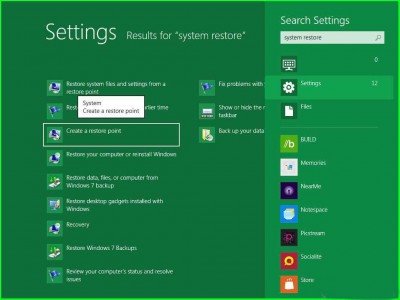
Create a system restore point in Windows 8/7

restore point in Windows 8/
Assalam o ALAikum! Today i will tell you how to create a restore point in Windows 7 & 8.It will record your every setting like windows registry .If unfortunatly something went wrong in your computer u can restore it.It is very easy to create a restore point in win 7 & 8.
Steps:
  • Click the Start button and in the search field type "Create a restore point" and click the appropriate command.
restore point in Windows 8/
  • In the next window, click Create.
  • Enter a name to identify the restore point of Windows 8/ (and avoid confusion when restoring) and click Create.
  • Now it only remains to wait for the process of creating a restore point finish.

Monday, February 04, 2013

Resize a Partition for Free in Windows 7 or Vista

Resize a Partition for Free in Windows 7 or Vista
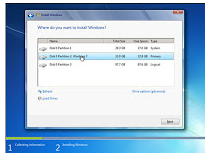
Windows 7 and Vista include a built-in functionality in Disk Management to shrink and expand partitions. No more 3rd party utilities needed!To get to this utility, open up Control Panel, and type in partition into the search box.. you’ll immediately see the link show up:
Resize a Partition for Free in Windows 7 or Vista
Shrink a Partition
  • In the Disk Management screen, just right-click on the partition that you want to shrink, and select “Shrink Volume” from the menu.
Resize a Partition for Free in Windows 7 or Vista
  • In the Shrink dialog, you will want to enter the amount you want to shrink by, not the new size. For example, if you want to shrink your 50gb partition by roughly 10gb so that it will now be roughly 40gb, enter 10000 into the box:
Resize a Partition for Free in Windows 7 or Vista
Extend a Partition
  • In the Disk Management screen, just right-click on the partition that you want to shrink, and select “Extend Volume” from the menu.
Resize a Partition for Free in Windows 7 or Vista
  • On this screen, you can specify the amount that you want to increase the partition by. In this case, I’m going to extend it back to the roughly 50GB size that it was before.
Note that the extend partition feature only works with contiguous space.

Saturday, February 02, 2013

Windows 7 Tips, Tricks and Secrets.

 windows 7 logo
Windows 7 seven users are increasing day by day and it gives you some much of fun exploring the tips, tricks and hidden secrets in windows 7. In this post we had given some of our user suggested tips, tricks and secrets, lets fly around them!!!
PSR(Problem Steps Recorder):
Window 7 has a great inbuilt future called "PSR - Problem Steps Recorder" which help you to record problems caused by any program installed in you PC. As a PC guru you are followed by your friends and relatives or by others to make you to solve the irritating small PC software problems ;-( I know you are very frustrated by this because they even don't know how to describe their actual problem.
But Microsoft knew your pain, So they had came up with a good solution(PSR) by which you can ask your friend/relative/others to run this and send the generated report, So that you can solve their problem with ease.Now lets see how to work with it,  
Just follow this simple steps.
  • Click on "Start" and type "PSR" and press enter.Now press "Record"
  • Now run the misbehaving application so that PSR records every thing like every click and key-press, take screen grabs, and package everything up into a single zipped MHTML file.That's it you are all set to go and solve the problem.
Start Up Repair:
One time or other every body faces this start up problem for a reason or for no-reason, So its good to create a system repair disc straight away in case you run into problems booting the OS later on. Just follow this simple steps.
  • Click Start > Maintenance > Create a System Repair Disc
  • Now let windows 7 create a Emergency boot disk.If you get to worst case this disk will help you to boot.
Find out Hidden wallpapers and themes:
We all knew that while windows 7 is been installed it will ask for your country, Time Zone etc.., Now based on your responses windows 7 will automatically selects which wallpapers to install by default.
Suppose you had selected your country as India, So that windows seven will install some wallpapers which are related to India.
To unlock all the wallpapers just follow this simple steps.
  • Click on Start and type "C:\Windows\Globalization\MCT" in the search box.
  • Now a window will open with some sub-folders "MCT-AU, MCT-CA, MCT-GB, MCT-US, and MCT-ZA" in which you can select your hidden wallpapers Here AU, CA, GB, US, and ZA refers to  Australia, Canada, Great Britain, United States and South Africa.
Import file over a network to Windows Live MovieMaker:
In windows 7 by default Windows Live MovieMaker will not give you access to import files over a network, but a simple Registry tweak will make this happen. Just follow this steps.
  • Run REGEDIT
  • Now navigate to HKEY_CURRENT_USER\Software\Microsoft\Windows Live\Movie Maker,
  • Now add a DWORD value called AllowNetworkFiles and set it to 1 to add network support.
  • That's it your done.
Custom Power Switch:
By default you see the "ShutDown" button on start button. But you are the man who reboots your pc several times a day then you can change "ShutDown" to "ReStart" in a few click by fallowing this simple steps.
  • Right - Click on Start button.
  • Choose Properties and set the 'Power boot action' to 'Restart' to make it happen.
  • That's it your done!!
Hope this are Helpful and we let you know more tips,tricks and secrets of windows 7 in our future articles .
Saturday, January 26, 2013

Create Bootable Win XP/ Win 7/ Win Vista USB Drive

 windows logo
It is very common that one time or other we all be forced to boot win XP/ 7/ Vista from USB due to many problems with our DVD drives or with their firmware versions or any other reason. If you are the one who is suffering to get this things done then this post is for you.
Now you can create Windows 7, Vista, or the old XP bootable USB key with a few clicks. Yup, this is true. Read to know more!
Requirements:
►USB atleast of 2GB capacity
►ISO of of your required OS(xp/7/vista)
►10 minutes of your precious time.
►A simple APP called WinToFlash tool (free) which you can download from here.

Procedure:
  • Insert your pen drive and back up your files and folders as it will be formatted during the procedure.
  • Now execute WinToFlash tool.
  • Now follow the on screen instructions and browse to your Windows 7, Vista, or XP ISO files.
  • Now make sure your pen drive letter is correct.
 wintoflash 
  • The final step - Now press "create" button and wait for few minuets to get your bootable USB stick. 
That's it your are all set and done. From now you can boot XP/7/VISTA from your USB drive.

Sunday, November 25, 2012

Change The Background Image Of Windows 7 Logon Screen

How would you like to change the logon screen background in Windows 7 so as to give your Windows a customized look and feel? With a small tweak it is possible to customize the Windows 7 logon screen and set your own picture/wallpaper as the background. Changing logon screen background in Windows 7 is as simple as changing your desktop wallpaper. Well here is a step by step instruction to customize the logon screen background.
Let we start: 
  •  The image you need to set as the background should be a .jpg file and it’s size should not exceed 245KB.
  • The image resolution can be anything of your choice. However I prefer 1440 x 900 or1024 x 768. You can use any of the photo editing software such as Photoshop to compress and set the resolution for your image. Once you’re done, save this image as backgroundDefault.jpg.
  • You will need to copy this image to
C:\Windows\system32\oobe\info\backgrounds
  • You will need to create that path if it does not already exist on your computer.
  • Now open the Registry Editor (Start -> Run -> Type regedit) and navigate to the following key
HKLM\Software\Microsoft\Windows\CurrentVersion    
            \Authentication\LogonUI\Background
  • If Background does not exist rightclick LogonUI, select New and then Key, and then name it Background. Now locate OEMBackground (listed on the right side). If it does not exist, right-click Background and select New and then DWORD and name it OEMBackground.
  • Double-click on OEMBackground and set the Value Data to 1.
  • Now log-off to see the new logon screen background. If you would like to revert back to the default background, just set the Value Data back to 0.

 Thanks for visiting my blog plz comment if you like my post.......
Share it.......

Friday, November 23, 2012

Angry Birds Space Theme for Windows 7 & Windows 8


After banging pigs in Angry Birds Space PC Version now its time to make your desktop angry by transforming it into a high definition Angry Birds home, where these birds will create some secret plans for banging those green ugly pigs muhaah! well this theme come with 10 high quality HD Wallpapers from Angry Birds Space.


So now this theme is available for both Windows 7 and 8, making your desktop fully colorful, setups for both are provided below you can download them.


Have fun guys and make sure to share these theme packs with all your friends so that they can also enjoy these and make their desktop colorful and angry too.
  
angry-birds-space-theme-windows
Thanks for visiting my blog plz comment if you like my post.......
Share it.......

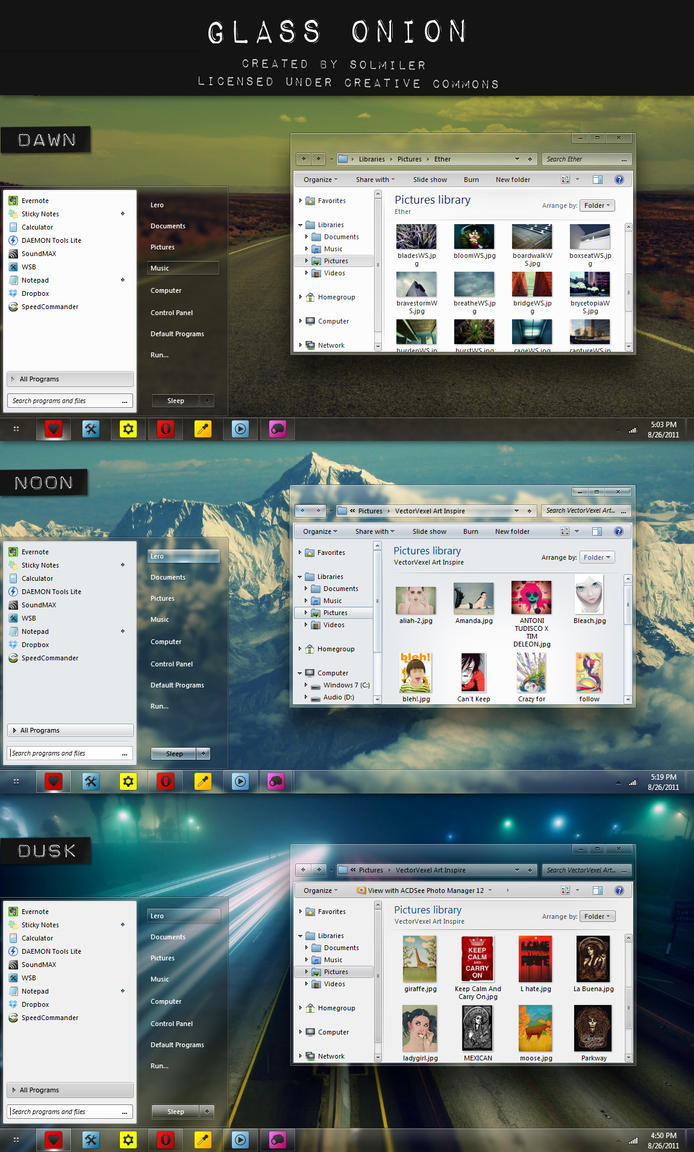
Glass Onion for Windows 7

 
This VS is for Windows 7. It’s tested and working on both 32 and 64-bit versions. System files are for SP1
Three visual styles : Dusk, Dawn and Noon
Support for top, bottom and left taskbar,
Two different fonts: Windows default Segoe UI font and smaller Calibri font.
Beautiful Wallpaper by Lars Bjork, check out His Flicker Page for more great photos
    
 
 Thanks for visiting my blog plz comment if you like my post.......
Share it.......

Transform Windows 7 Into Mango With Mango Skin Pack!!!

 
The all new Windows Phone 7.5 Mango is one of the most promising mobile OS till date. With awesome looks, powerful interface and later when the Apps will also start flowing this OS has the potential of being the biggest OS in future. Although it is going to get stiff competition from iOS and Android but Mango is being by Microsoft and they are the ones who are having maximum experience with building OS’s.
You use Mango Skin Pack 1.0 which is also available for free and compatible withWindows 7.
 
     
 Thanks for visiting my blog plz comment if you like my post.......
Share it....... 

Transform Windows 7 Into Android With Android Skin Pack!!!

 
Initiated later than the iOS, Android has managed to become the most popular in the hand held segment and Tablet as well. With the all new Android Ice Cream Sandwich set to be released soon and an all new impressive GUI being the main attraction we predict Android getting even bigger in coming months.
You can easily Transform your Windows 7 desktop in to Android by using Android Skin Pack 1.0. The good thing about this installer is that it installed all the patches required for the Pack and also installed third party Apps. The result is pretty impressive and a must for all Android lovers.
                                  Download:-  64 Bit 32 Bit
  Thanks for visiting my blog plz comment if you like my post.......
Share it.......

Placebo for Windows 7


Features:-
Eight Visual Styles.
Additional borderless versions
Support for top, bottom and left taskbar,
Two different fonts: Windows default Segoe UI font and s smaller Calibri font.
Basic version of every style.
Support for Theme resource changer – no changing of system files is necessary.